Skip to Main Content
USC logo

Course Readings

Create course reading lists in Canvas Courses

Send to Library and Publishing Course Readings

This is an important step!

When you are happy with your list, you must send the list to the library for processing by clicking Send to Library, located in the top banner.

Screenshot showing the Send to Library button located at the top of a Course Readings list.

Sending your list allows Library staff to:

  • process all digitisation requests;
  • review purchase requests;
  • check copyright and licensing compliance;
  • assign items to reserve and short-term loan collections;
  • ensure links are working;
  • publish your reading list, making it available to course students. You will receive email confirmation when your list is published. 


Library tip

After you send your list to the library the first time, the Send to Library button will no longer be visible. However, you may continue to update your list, including adding and editing sections and items, and adding notes and tags. New items and actions will automatically flow through to the library for processing.

Ask for help with Course Readings

The Library can help you:

  • access your list;
  • set up a new list;
  • with technical questions;
  • by providing advice on adding and editing items, sending and publishing your list;
  • with digitisation requests and copyright;
  • by suggesting ways to improve access and student engagement.

Ask for help by emailing Course_Readings@usc.edu.au or book an appointment with the Course Readings Librarian.

Alternatively, contact your Liaison Librarian to have a conversation about finding relevant, quality resources, including Open Educational Resources.

When should I Send to Library?

Course Coordinators are asked to send their lists to the library for processing:

  • 4 weeks prior to the start of Semester based courses.
  • 3 weeks prior to the start of Session and Trimester based courses.

All Course Readings are published by the Library once the list has been sent.  All unsent lists will be published 2 weeks prior to the start of the teaching period.

Why can’t I see the Send to Library button?

Once Course Readings have been published, the Send to Library button disappears.  However, you can ensure your readings are processed by the library, by adding a new item, or unpublishing the list to reinstate the Send to Library button. 
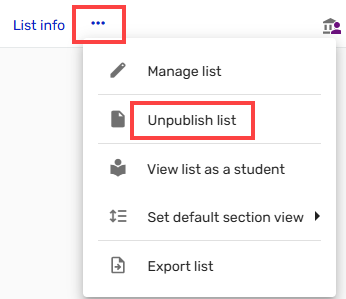
  • Add a new item. When you add a new item, all items (new and existing) will automatically be sent to the library.  
  • Unpublish and Send to Library. Unpublishing your list will reinstate the Send to Library button. If you do not need to update your list, first Unpublish list and then select Send to Library. Once sent, the list will automatically be published again.

Click on elipsis to the right of list info and select unpublish list

© University of the Sunshine Coast, Queensland, Australia | ABN 28 441 859 157 | CRICOS Provider No. 01595D