Skip to Main Content
USC logo

Course Readings

Create course reading lists in Canvas Courses

Add items, notes and tags

Add items to Course Readings

There are several ways to add items to your Course Readings:

  • Search the library.
  • Add from favourites.
  • Add using ISBN.
  • Import references.
  • Manual entry.
  • Cite it!

This table will help you decide which method is most appropriate for the type of resource you wish to add.  

Type of resource Recommended methods

UniSC owned titles or subscriptions:

  • Books (physical book, eBook, book chapter or extract).
  • Journal articles.
  • Subscribed streaming videos.
  • Other resources in the library catalogue and databases.

Search the library.

Add from favourites.


UniSC owned titles or subscriptions not found in Library Search:

  • Some health databases.
  • Subscribed streaming videos.
  • Newspaper articles.
  • Company market and industry reports.
  • Legislation and cases.
  • Statistics.
  • Standards.

Cite it!

Manual entry.

Add from favourites.

Freely available online content without restricted licence:

  • Streaming videos (e.g. YouTube).
  • Websites or webpages.
  • Government or organisation online documents.

Cite it!

Manual entry.

Add from favourites.

Requests for titles or chapters UniSC does not own:

  • Physical book.
  • Electronic book.
  • Book chapter or extract.

Manual entry.

Add using ISBN.

Contact your Liaison Librarian to have a conversation about finding relevant, quality resources, including Open Educational Resources.
Add items using Library Search

  1. Select the + Add button at the top of the list, then Search the library.

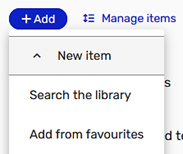
Screenshot showing Course Readings' '+ADD' menu used for adding items.

  1. You may Search Everything or use the drop down to search a particular collection.
  2. Enter your search criteria such as title, author, keywords, or ISBN.
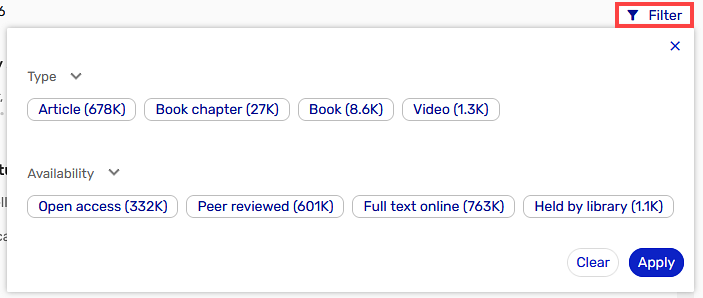
  3. Refine the search using appropriate the Filter button.

Screenshot showing the filter option in Library Search. Users may refine results to specific format and availability types.

  1. You can change to Advanced Search if you know more about the resource.
  2. Locate the required item in the search results; paying particular attention to the resource type, format, and edition as multiple iterations of a resource may be available.
  3. You may drag & drop an item directly into your list from the search results or click on the result, choose where to add the item, and select Add & Edit or simply Add.
  4. To edit a resource within the list, click on the items and select Full details to the right.
  5. Select the relevant tab at the top of the record and edit details as necessary.

Library tip

Once you have added an item, add notes and tags as they are a great way of communicating with students and library staff. Please refer to the Add notes and tags tab for instructions.


How to add different resource types

Book chapters
  1. Using Search the library, you may either search for a chapter title in the library catalogue or add the Book title, and then edit the item to refine to a book chapter.
  2. Select the Item menu (…) and Edit item.
  3. Use the Type drop-down to select Book Chapter.
  4. Add the Chapter Title, Author, Chapter Number, Start page and End page.
  5. Save.
Book extracts

You can add a page range from a book when an entire chapter is unsuitable. This may include multiple, separate page ranges from the same book, in one item (within copyright limits). First use Search the library to add the Book title, and then edit the item to refine to a book extract.

  1. Select the Item menu (…) and Edit item.
  2. Use the Type drop-down to select Book Extract.
  3. Add the required Start and End pages. If you need more than two ranges of pages, use the Note for students field (located under the Item actions tab) to enter all page ranges for that item.
  4. Save.
Journal articles

Using search to add journal articles to your reading list is the most reliable and preferred method to use for such content.

  1. Select + ADD and Search the library.
  2. Enter your search criteria such as article title, author, or keywords.
  3. Locate the required item in the search results.
  4. You may drag & drop an item directly into your list from the search results or click on the result, choose where to add the item, and select Add & Edit or simply Add.
  5. Check the items details. You may need to edit the bibliographic information by adding or modifying fields.
Open Educational Resources (OERs)

Open access books, including open educational resources (OERs), can be included in Course Readings in the same way as other resources, either through Search the library or Cite it! The library catalogue includes several OER collections and some databases that contain both subscription content and Open Access (OA) content. 

Search the library

  1. Enter your search criteria such as keywords, title, author or ISBN.
  2. Refine the search using the appropriate Filter buttons.

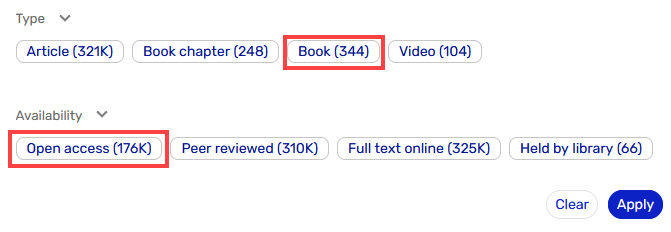
Screenshot showing highlighted Book and Open Access filter options in Library Search.

  1. Locate the required item in the search results.
  2. You may drag & drop an item directly into your list from the search results or click on the result, choose where to add the item, and select Add & Edit or Add.

Cite it!

Cite it! allows you to add OERs from sites such as Open Textbook Library, OER Commons and OpenStax. You may select the applicable Creative Commons (CC) license during this process. See the Using Cite it! tab for more information.

Library tip

Contact your Liaison Librarian to have a conversation about finding relevant, quality resources, including Open Educational Resources.
 

Manage your Favourites

You can manage your Favourites in two ways; using the Course Readings Left Pane or + Add.
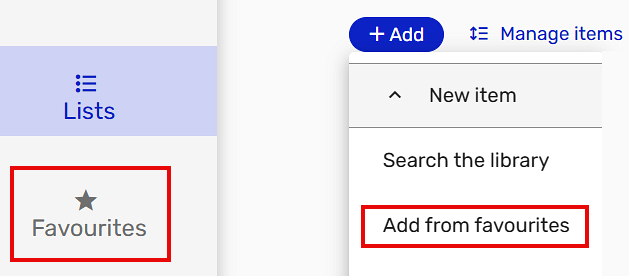
Screenshot showing the two methods for accessing favourites in Course Readings.

Add resources to Favourites

When adding items using Search the library, you can choose to Add to: Favourites, rather than Add to: List.  
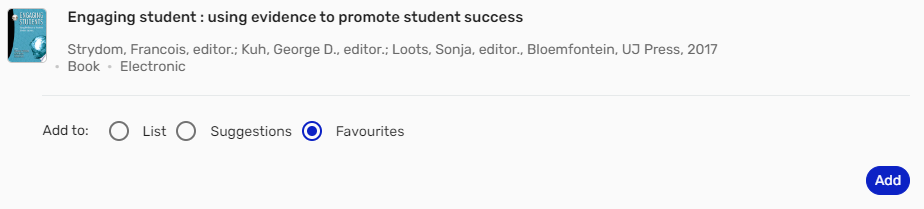
Screenshot showing the Favourites radial button selected in a Library Search result.

Alternatively, navigate to your Favourites on the Left Pane and select + Add.  You may add resources to your favourites using Search the library, Import references or Manual entry. 

Add items from Favourites
  1. Once the resource is in your favourites you can add it to a reading list.
  2. Select + ADD, then Add from Favourites.
  3. Scroll through or search the collection until you find the required resource.
  4. Either drag and drop the item directly into your list from your favourites, or select the item, choose Add to: List and select the desired list and section from the dropdown menus. Choose Add.
Remove resources from Favourites

Removing a resource from your Favourites will not affect any items or readings lists where the resource has previously been added. To delete a resource from your Favourites:
  1. Select Favourites from the Left Pane.
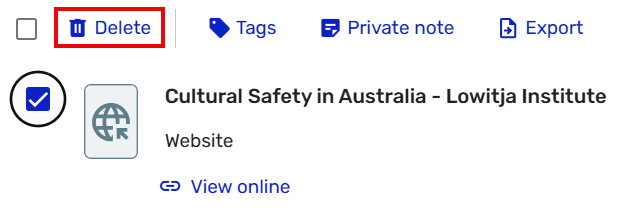
  2. Select the individual check boxes for items you wish to remove or choose the top checkbox to select all.
  3. Select the Delete option.
  4. Confirm and select Delete.

Screenshot showing an item selected in a user's Favourites collection, and the highlighted Delete option used to remove the item.

Import references from file (RIS)

Individual citations or entire citation lists may be imported into Course Readings from your chosen bibliographic citation manager or reference management software (e.g. EndNote, Zotero, Mendeley). 

In your reference manager
  1. Export and save the selected citations or citation group in RIS format.

This process will vary depending on the reference manager you are using. If you are using EndNote, first create a group folder containing the citations for export, select the group and choose Export... from the File menu. In the pop-up window, select Text File for  'Save as type' and Refman (RIS) Export for Output style before saving.
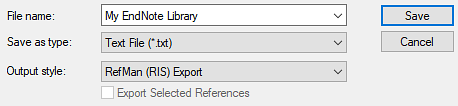
Screenshot showing Endnote's export popup window that includes the selected Endnote library, Save as text file option, and RIS Output style option.

In Course Readings

Once the RIS file has been created, return to your reading list.

  1. Select +Add and choose Import reference > From file.
  2. Choose RIS as the file type and either drag & drop your file or select the link provided to browse for the file.
  3. Review the imported references and choose either Add all items or Start over.
  4. The imported citations will appear at the bottom of the first section in your list. These can be moved within the section or to another section.  For instructions, refer to Move sections and items in Get started (you will need to scroll down to the relevant section).

Add items using Manual Entry 

If a resource is not available through Search the library, you have the option to create an item manually. Use this option if you would like to request an item be purchased. Purchase requests which support the University’s learning and teaching activities will be considered.  

  1. Select + ADD within the reading list, then Manual entry.
  2. Select the resource type from the Type dropdown menu (e.g. Article, Book Chapter) and enter the title before choosing Next.
  3. Fill out as many item details as possible, including: 
  • Title;
  • Author;
  • ISBN or ISSN;
  • Edition (if applicable);
  • Publisher (if known);
  • Publication date;
  • Chapter number (if applicable);
  • Page numbers (if applicable).
  1. Select Next, and choose which Section to add the new item.
  2. Add relevant Notes for students and choose Add tag if applicable e.g. Purchase (for further information see the Add notes and tags tab).
  3. Select ADD.

The new item will be added to the bottom of the selected section.
Install Cite It! in Chrome
  1. Open your Google Chrome browser.
  2. Ensure the Show bookmarks bar is active in your browser settings.
  3. Open your Canvas course.
  4. Select Course Readings from the navigational menu.
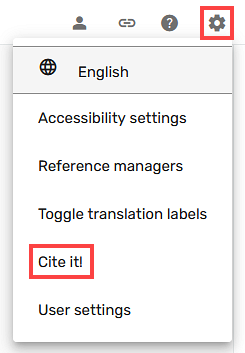
  5. Select the Settings menu (cog wheel icon) in the Course Readings Header Bar and choose Cite it!

Screenshot showing highlighted Cite it! option in the Course Readings Settings menu.

  1. The Cite it! dialogue box will open. To install, you must click, hold, and drag the Cite it! button from this dialogue box onto your browser bookmarks bar.

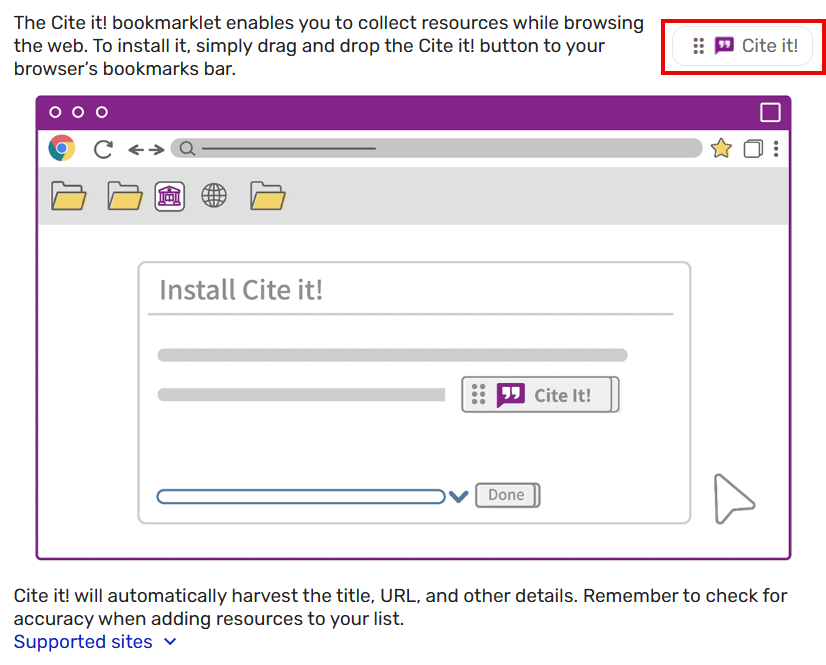
Screenshot of Cite it! popup window in Course Readings.

Using Cite It!

Cite It! enables you to easily add webpages and streamed videos (e.g. YouTube) to Course Readings.
  1. Go to the webpage you wish to add to Course Readings.
  2. Click Cite it! in your bookmarks bar.
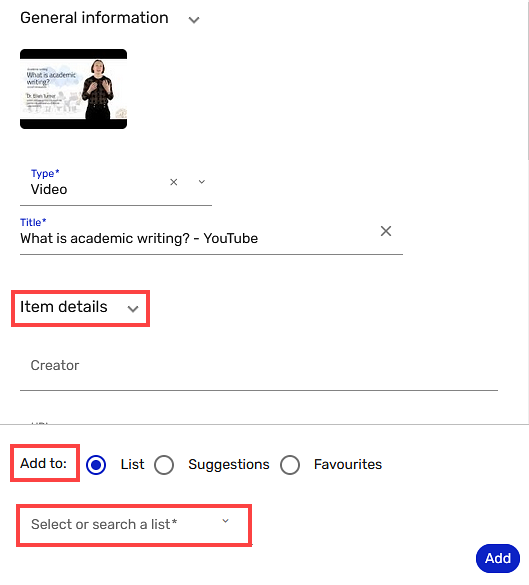
  3. Metadata will be harvested from the online source and made available in the Cite it! pop-up window. Ensure the details are correct and sufficient. You may also select the applicable Creative Commons (CC) license that applies to your resource at this stage.

Screenshot showing Cite it! popup window containing Item details fields and Add to options including list, suggestions, and Favourites.

  1. Select the relevant radio button to add to List or Favourites (see Add from favourites). If List has been selected, you may choose the specific list and section.
  2. Click Add.

Library tip

If Cite it! isn’t working, try deleting it from your bookmarks and adding it again.


Cite it! can also be used to add items to Course Readings that are owned by UniSC, but not found via Library Search. Examples include:

  • Some health databases;
  • Streaming videos found in library databases;
  • Company Market and Industry reports;
  • Legislation and cases;
  • Statistics;
  • Standards.
     

Add notes and tags

Don't forget notes and tags as they are a great way of communicating with students and library staff. Use them to communicate expectations, relevance to learning and assessment tasks and develop critical thinking skills in students.  

The table below outlines when and how to use each of these communication methods. 

Type Label Description
Notes Note for students Notes are visible to enrolled students and are useful when providing additional instructions or information. 
Tags Prescribed text Advise students of mandatory course text.
  Required reading Advise students of readings that are required for weekly tutorials or learning goals.
  Recommended reading Advise students of additional, optional readings.
  Digitise Advise the library that a scan is required from a physical book or a source not currently held by the library e.g. a Document Delivery request for a journal article not subscribed to by the library. Please be aware of copyright restrictions when requesting digitisations.
  Purchase Advise the library of a resource you wish to have considered for purchase.
  Open book exam Advise the library of a resource (book chapter/s or page range from a physical book) that requires digitising for a specific open book exam period.
Notes 

Add notes

  1. Click the title of an item to open.
  2. Click within the Note for students field and type your message. Basic text formatting options (including insert link) are offered in the contextual menu. 
  3. Notes are automatically saved. Close item once complete.
Tags

Add tags

  1.     Click the title of an item to open.
  2.     Select the Add tag field and choose the appropriate tag.

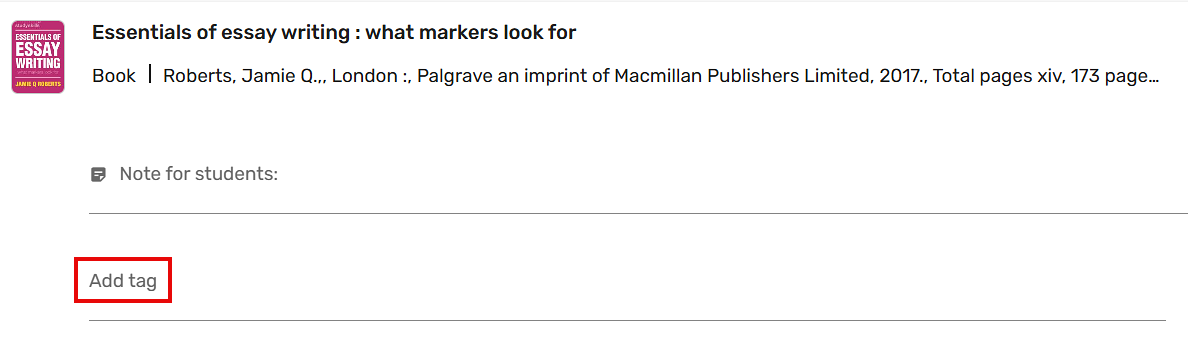
Screenshot showing the Add Tags option in a list item's record.

  1.     Tags will display beneath the item details.
  2.     You can add multiple tags.

Remove tags

  1.     To remove a tag, click the X beside the tag.
© University of the Sunshine Coast, Queensland, Australia | ABN 28 441 859 157 | CRICOS Provider No. 01595D